AI Work Summaries

- Overview
- Auto-Generating a Work Summary
- Manually Generating a Work Summary
- Sharing a Work Summary
- Work Summaries in XOi Web
- Requiring a Work Summary
- Summary Preferences
- Additional Information
Overview
Using XOi + AI, all user roles can create a summary of work completed on-site easily.
AI Work Summaries instantly generate clear, comprehensive reports using step responses defined during workflow creation. Steps that can be included are:
- Step Notes
- Yes/No responses
- Multiple Choice responses
- Numerical step responses
- Date responses
- Short text responses
- Dataplate Unit Name

Auto-Generating a Work Summary
To generate these AI work summaries, you must complete all required fields in a workflow. At the bottom of the workflow, there will be an AUTO-GENERATE button. You may also access this page through the Work Summary button at the top of the workflow.
If this button is grayed out, you have not completed the required steps (steps with gold star) and must go back up to complete. Underneath the AUTO-GENERATE button, the amount of required steps not completed will be posted.
When the button is blue, you may select it to generate your summary.
Once selected, XOi will take your answers in the customer-facing workflow steps and generate a summary. This should only take a few seconds.
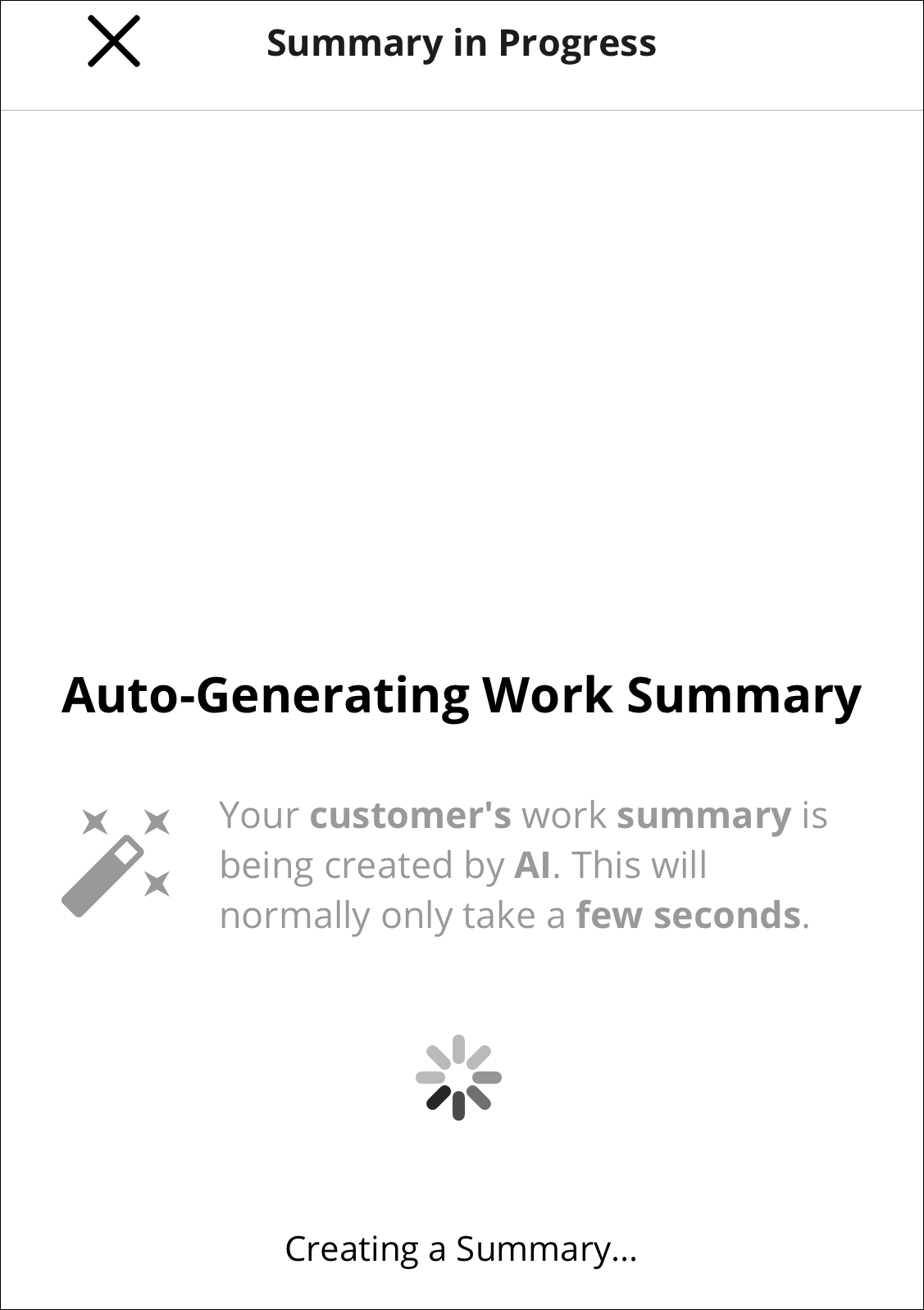
The summary will be presented to you giving you the options to:
- Editing will allow you to make any changes to the summary that are needed.
- Sharing will allow you to share via text message or email, or you may copy the entire summary to paste in other places.
- Rating the summary lets XOi know how accurate and useful the AI Summary is for you.
- Approving will officially generate the workflow summary and place it in the Work Summary button at the top of the workflow, where you can review it.
To regenerate a summary, first delete the existing one. Then press Done — a new Auto-generate button will appear at the bottom of the workflow.
NOTE: There may be times when the workflow you are using does not have enough content to generate a summary. This has happened if you selected AUTO-GENERATE and are presented with the below screen.

To generate a summary, please provide additional details. You may paste text in or use text to talk in this area. When done, select AUTO-GENERATE and the summary will generate. You can also do this through the Work Summary button at the beginning of the workflow.
Realize you put the wrong answer on a workflow step?
That's okay! You can delete the Work Summary, go back to the workflow step and correct your answer, then simply click Auto-Generate again for a new summary.
To delete the Work Summary, you'll click on the workflow the Work Summary is within and select the Work Summary button to open the summary.
Once opened, you'll delete the summary by clearing out the text and select the blue checkmark in the upper right-hand corner. You'll notice your Work Summary button will not have any writing within.
You can then go back to the Workflow Step(s) and edit your answers then click on the Work Summary button to generate a new summary.
Manually Generating a Work Summary
If you would prefer to manually write your work summary, you may do so through the Work Summary button at the bottom or the top of the workflow.
Below the AUTO-GENERATE button, there will be a Write Summary section. Select the Write My Own Summary button to begin. You will have the ability to stylize the summary with bold, italic, and bullet point features.
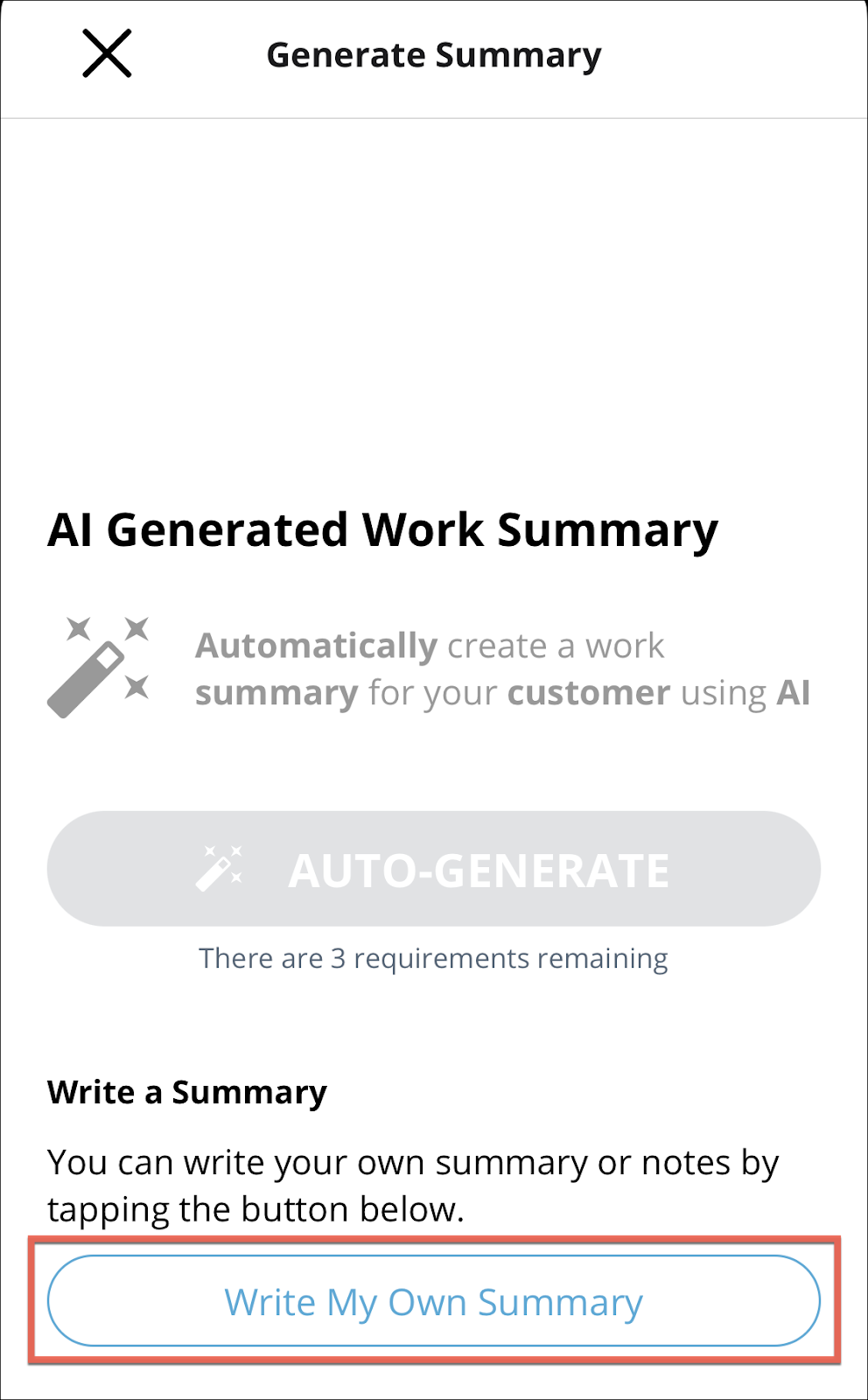
Press Done(blue checkmark) when done.
Requiring a Work Summary
A work summary can be made a requirement to be completed before a workflow can be finished. Admins can establish whether a auto-generated work summary is required or a manually written summary is.
Learn more here: How do I make an AI Work Summary required?
Work Summary Preferences
Admins can disable the AI Work Summary feature for individual workflows using the Disable AI Work Summary toggle within the workflow settings. When enabled, this prevents the AI from auto-generating a summary. However, technicians can still manually write a summary if they choose.
They can also choose which step responses are used to inform the AI Work Summary. When enabled, the selected step will inform the AI Work Summary each time the workflow step is used. To include a step response, toggle on Use this response to inform the AI Work Summary.
Under the Advanced Summary AI Options Admins may establish writing preferences for the summaries.
Perspective
You can choose how the AI Work Summary is formatted based on your preferred communication style:
Bullet Points (Default):
The summary is structured as a list of short, action-based items. This format is great for quickly scanning the work completed.
Narrative:
The summary is written in a paragraph format with a clear beginning, middle, and end. This style provides a more descriptive and cohesive explanation of the work done.
Writing Style
You can choose how the AI Work Summary is written by selecting a preferred writing perspective:
- First Person (Default): The summary uses “I” and “my” to describe the work completed onsite.
- First Person Plural: The summary uses “we” and “our” to describe the work completed onsite.
Custom Introduction
Admins can choose to write a custom introduction for the AI Work Summary, which will replace the default opening line, “Today I arrived on site.”
To use a custom introduction, simply enable the toggle and enter your preferred text. The custom introduction is limited to 200 characters.
Learn more here: How do I make an AI Work Summary required?
Sharing a Work Summary
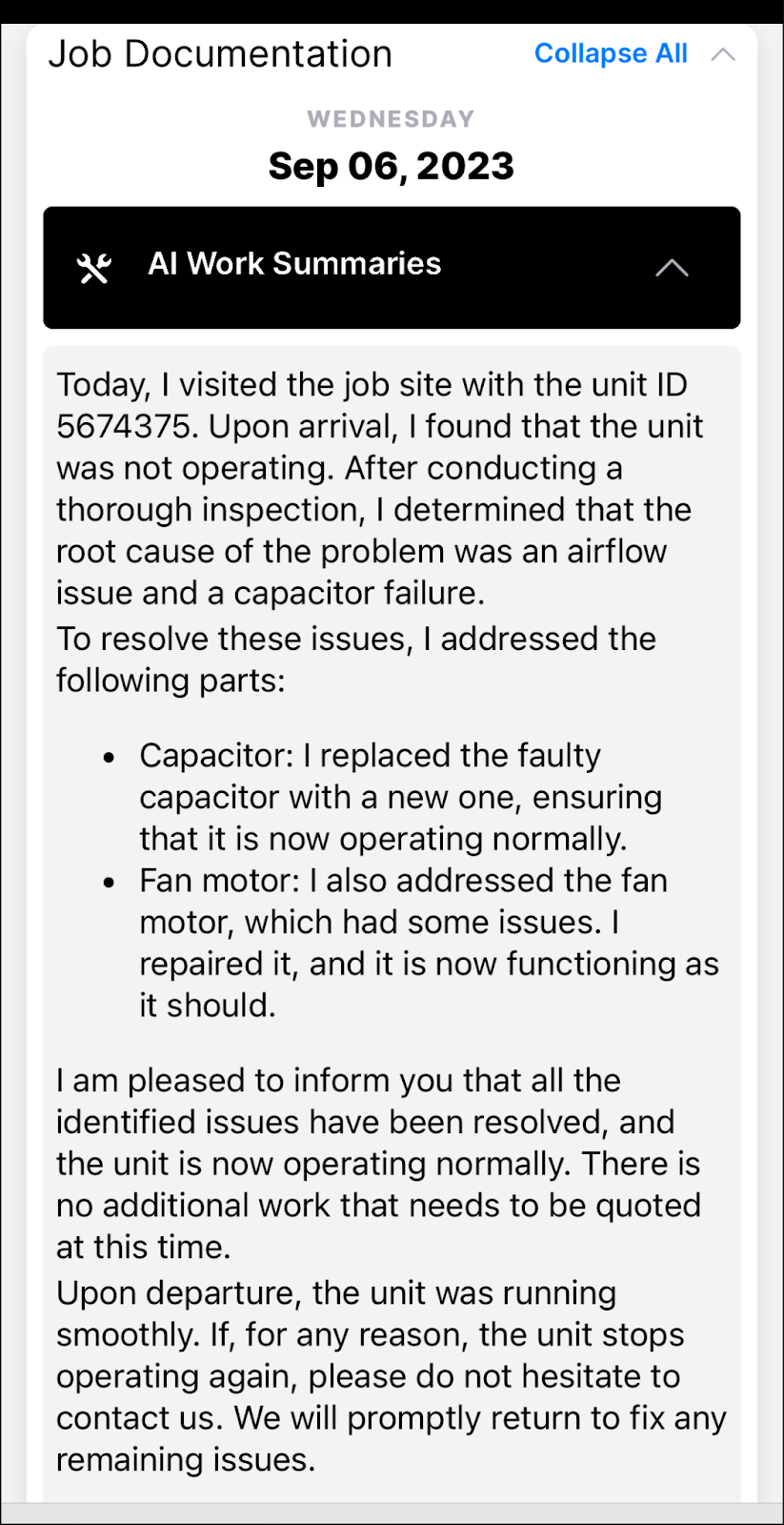
A work summary can be shared by copying at the time of approval, or in the share link that is generated at the time of job completion.
You may share just the workflow or the job by clicking on the corresponding share icon
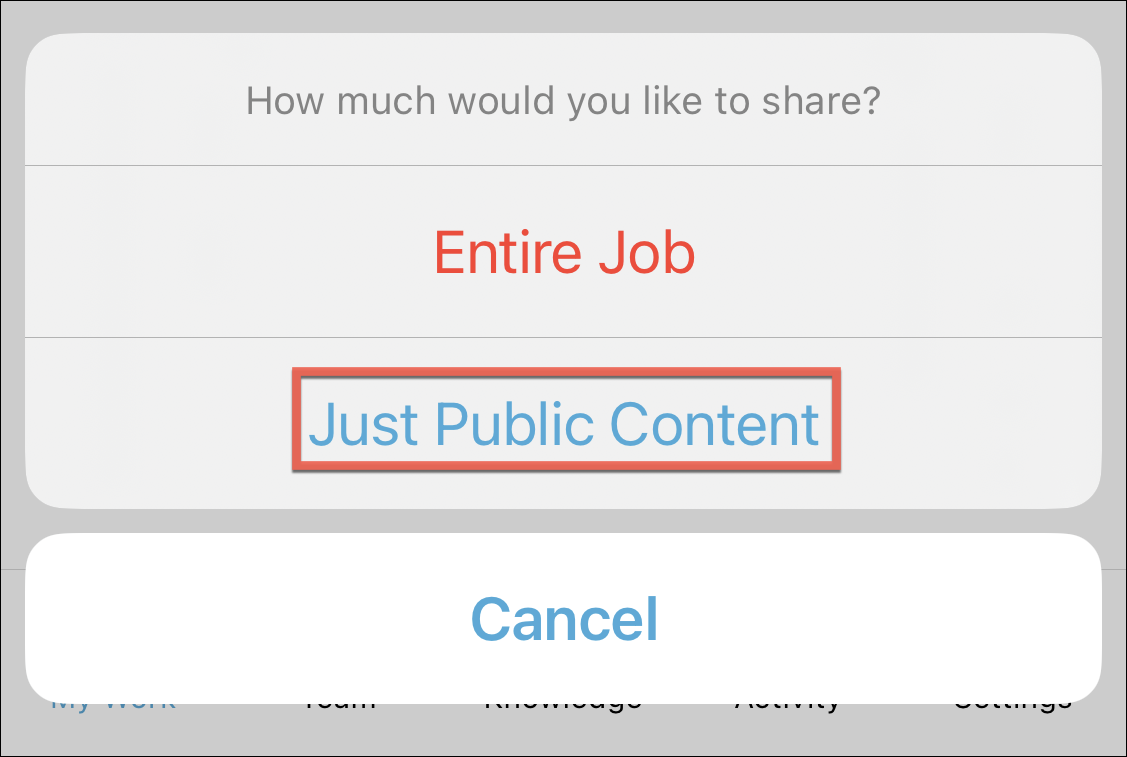
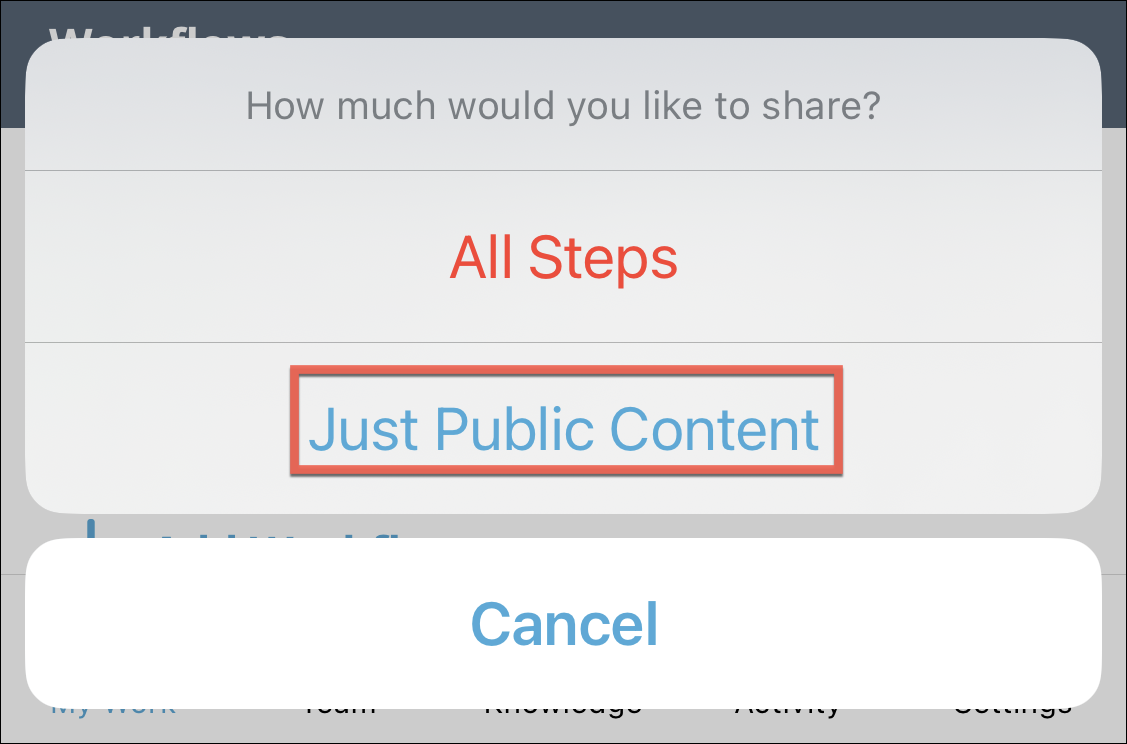
The workflow summary will be at the top of the workflow information in the share link.
Work Summaries in XOi Web
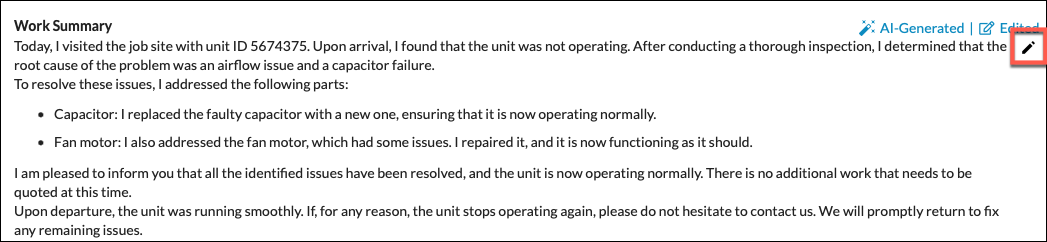
Work Summaries are reviewable and editable on XOi Web. You may find the job by clicking on the blue title in the Job Activity area.
There will be a Work Summary section. If a work summary was already created it will be visible. If the work summary has yet to be created it will be empty. There will be a pencil icon giving you the ability to edit or add a work summary.
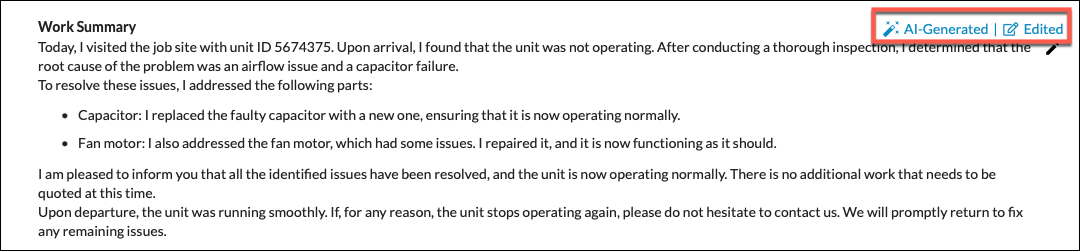
When a work summary is AI-Generated in mobile it will have an AI-Generated label in the top right-hand corner. The label Edited will be added when an edit is made to the Work Summary.
Note: Work summaries can not be auto-generated in XOi Web.
Additional Information
- To see what has changed on the workflow page with this new feature read this: AI Work Summaries: What changed on the Workflow page?
- Users will need to be on v. 1.68.0
- Workflows will need to be built with AI Summaries in mind. Please speak to your Customer Success Manager for guidance.
- If your organization has an integration configured to pull transcriptions or step notes from a specific workflow step, we will need to do some configuration updates on our end. Please have your administrator speak with their Customer Success Manager.
- Video transcriptions are not included in the AI work summary but If your organization has transcript approval required enabled on a step to create job summaries, the AI Work Summary will be replacing this. Without changing these settings, XOi will now require the technician to provide a work summary on that workflow instead of an edited transcription. The user can use AI Work Summary to generate the work summary or they can write their summary manually - but a work summary will be required on any workflow that previously had a step with Transcript Approval Required.
Comments
0 comments
Please sign in to leave a comment.